KlarCam

The on-air picture that holds up.

KlarCam turns your camera into a broadcast-ready picture for Teams, Zoom and OBS: natural skin instead of a blur filter, a key light that follows the shape of your face, and colors that are the same in every app. Measured, not filtered.

Try free for 14 days Buy once, no subscription

Windows 10/11, any Direct3D 11 GPU, no admin rights, everything runs locally.

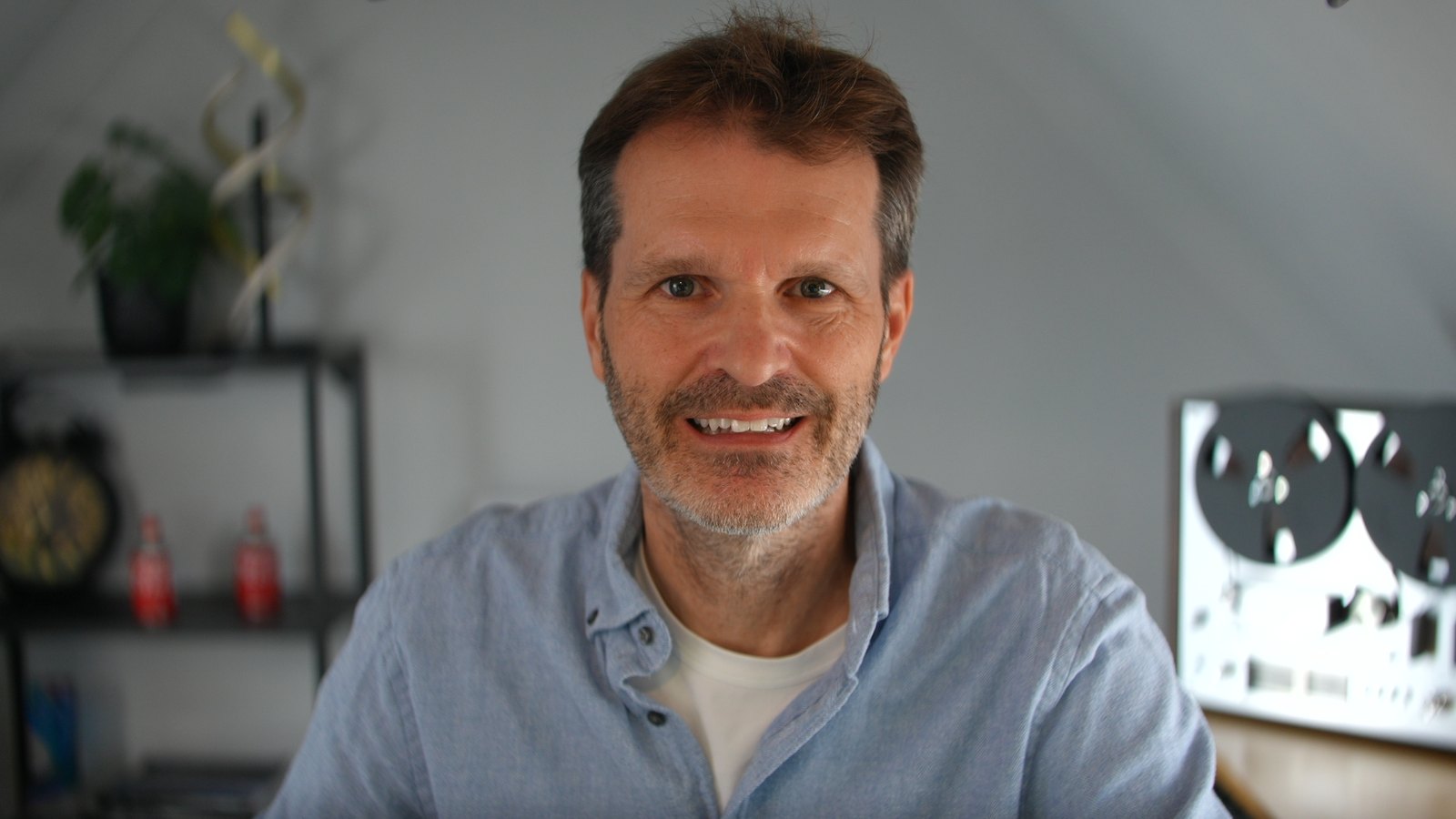
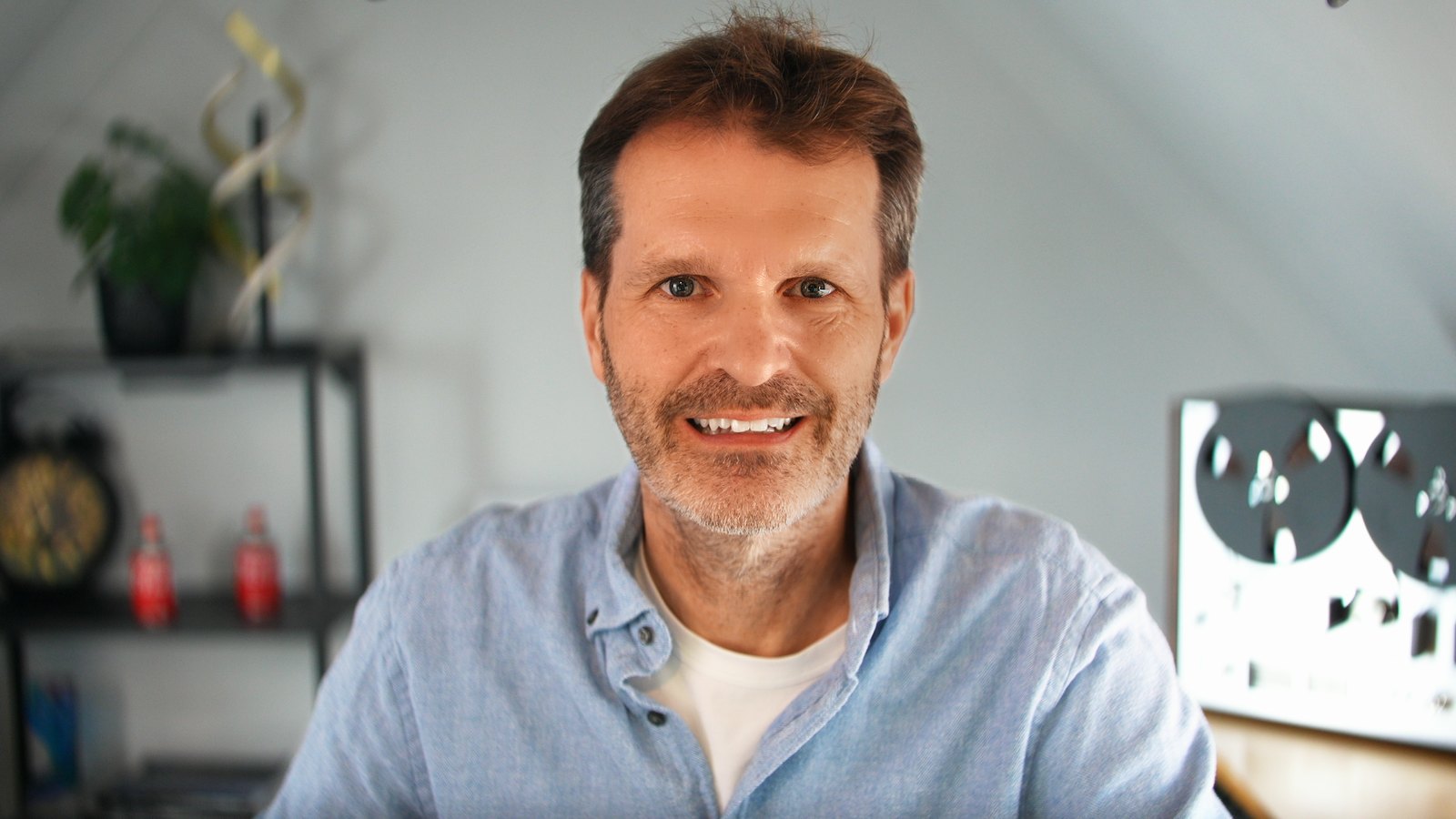
Camera picture, untouched The same picture with KlarCam
CameraKlarCam

The same frame, once straight from the camera, once through KlarCam. Drag to compare.

Why webcam video rarely looks good

It is not the camera. It is what happens after it.

Wrong colors in the app

Teams, Zoom and browsers guess the camera's color matrix. The same camera looks yellowish and flat in Teams and oversaturated in a browser. KlarCam reads the camera's color information and delivers RGB, so nothing is guessed any more.

Blur instead of skin

Beauty filters smooth everything, reshape faces and look like filters. KlarCam smooths skin only, keeps pores, beard and edges, and never changes the shape of a face.

Flat light

A desk is not a studio. KlarCam adds a virtual key light computed from the 3D shape of your face and holds the face at a constant brightness while the background follows separately.

What KlarCam does

Skin, only skin

Tracks the face with 468 points, smooths skin, leaves eyes, brows, lips and the beard alone (detected automatically).

Skin tone on the line

Pulls outliers toward the vectorscope's skin tone line and keeps the natural spread. For professionals: a built-in Rec.709 vectorscope.

Light and exposure

Virtual key light, automatic face exposure, background adjustable on its own.

Correct colors everywhere

The "KlarCam" virtual camera delivers RGB. Teams, Zoom, Meet and browsers show the same colors as the preview, with no setting.

OBS filter included

The same core as a filter in OBS Studio 33, GPU accelerated, about 5 ms per frame at 1080p.

Measurable

A measurement panel with skin tone, exposure, contrast ratio and wall level; "Match" moves the sliders to target values.

Full control over every parameter

Presets are enough to start. If you want to know exactly what happens, the app and the OBS filter have the same sliders, grouped by area. In OBS they belong to the camera source and travel with the scene collection.

Exposure

First step of the chain, like ISO and exposure compensation on the camera.

  • Exposure in EV, whole frame
  • Automatic: holds the face at a target level (p90 in IRE, default 67)
  • Background in EV, separate from the person

Skin

  • Smoothing: strength and radius
  • Skin tone detection of the mask
  • Beard: detected automatically, strength adjustable
  • Sharpening at edges

Skin tone

In the Rec.709 vectorscope, with the skin tone line as the reference.

  • Correction toward the skin line and tolerance band
  • Saturation contrast along the line
  • Pull: rotates the face's hue toward the band center, the spread stays
  • Skin band from/to in degrees, for scope, target and report

Light

A virtual key light computed from the 3D shape of the face.

  • Strength
  • Direction left/right and height side/above
  • Spread beyond the face
  • Edge tightness at the silhouette

Eyes and teeth

  • Eye sharpening
  • Removal of reflections in the eyes
  • Brighter eye whites
  • Teeth whitening

Color

  • LUTs: reduce red skin, reduce yellow skin, contrast look
  • Load your own .cube LUT
  • Each LUT on face skin, the person or the whole frame
  • Film look

Measure and check

  • Vectorscope as overlay or full screen original | processed, face skin only, zoom
  • Measurement report: face p50/p90, clipping, contrast to the wall, wall sample freely placed
  • Debug views: mask, smoothing layer, landmarks, tone change, normals, measurement zones

Workflow

  • A/B: the original with one click, measurement keeps running
  • Presets Natural and Stream, three slots of your own in the app
  • "Match" in the app moves the sliders to the report's target values
  • One key for the app and the OBS filter

How it works

Install

Run the setup, no admin password needed. KlarCam creates the virtual camera.

Pick the camera

In Teams, Zoom or the browser choose the camera "KlarCam". In OBS put the "KlarCam" filter on your camera source.

Set the look

Pick a look preset or set the sliders to taste. Compare with "Original" at any time.

Download

Everything works for 14 days; afterwards the camera frame passes through unchanged until a key is entered. No sign-up.

Download KlarCam for Windows

Version 0.2.0, about 35 MB. Windows 10/11 64-bit, a Direct3D 11 GPU (NVIDIA, AMD, Intel). OBS filter for OBS Studio 33 or newer.

Buy

KlarCam license

€49

one-time, VAT included where applicable

  • App and OBS filter
  • One key, no expiry, no subscription
  • Key right after purchase, by email and on the page
  • Invoice included

Payment through Stripe (card, Apple Pay, Google Pay, Link); sold through Stripe's merchant of record "Sold through Link". Lost your key?

Why KlarCam exists

I keep seeing politicians, scientists and executives on prime-time news, joining live in front of millions of viewers over a plain webcam: flat light, wrong skin tones, noise. And every day I see the same pictures from colleagues in Teams meetings, for hours.

As an audio and video engineer that would not let me go: why are bad camera pictures still normal today, even at prime time? The camera is rarely the problem. What is missing are the three things a studio provides: light, skin treatment and correct colors. So I built them in software, from the practice of professional image processing, lighting and natural color, and made them measurable.

KlarCam makes professional video for talking heads possible for anyone, with any camera: as a virtual camera in Teams and Zoom, or as a filter in OBS for live streams.

Lars von Thienen

Questions

Does it run in the cloud?

No. Your GPU does all the work; no image leaves your computer. The license is verified locally too.

Does KlarCam change my face?

No. No reshaping, no enlarged eyes, no makeup. Skin is smoothed, light and color are corrected, proportions stay.

Which cameras?

Any camera Windows sees: webcams, HDMI capture cards, NDI and other virtual cameras. Best with a camera that delivers 1080p or more.

Mac?

Windows only for now.

Subscription?

No. Buy once; the key covers the app and the OBS filter for good.

Teams shows my picture differently from the KlarCam preview.

In Teams, Settings → Devices, switch off "Adjust brightness" and "Soft focus"; Teams otherwise re-adjusts behind KlarCam. The self-view is mirrored, the picture others see is not.